

The premiere source of truth powering network automation. Open and extensible, trusted by thousands.

NetBox is now available as a managed cloud solution! Stop worrying about your tooling and get back to building networks.
Drawing Continuous Connectors in Visio
By stretch | Wednesday, April 11, 2012 at 3:03 a.m. UTC
Dynamic connectors in Microsoft Visio will typically have no more than one ninety-degree angle. This behavior keeps the line rendering as simple as possible. Of course, sometimes one need connectors to travel out of their way a bit across more complex drawings in order to keep things clear.
A connector can be manipulated so that it spawns additional angles by holding the shift or control key while dragging its midpoint. Holding the shift key will break out the middle of the line, creating four new right angles (the first example below). Holding the control key will create a single angle of an arbitrary degree at the midpoint (the second example below).
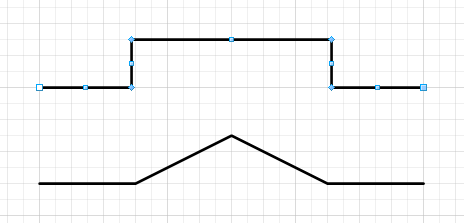
To create just two new right angles, you can create a breakout like the example above and then simply move one portion of the connector in line with the breakout; it should snap right in place. This will fuse the two sections of line back into one.
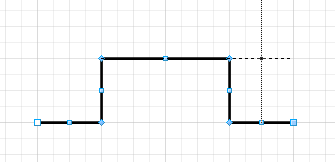
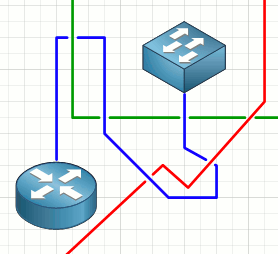
You can repeat this process at junctions where you want a connector to change direction to create very orderly (or in the case below, chaotic) connectors with a predictable path from end to end.
Posted in Network Diagrams
Comments
April 11, 2012 at 4:16 p.m. UTC
I like this, thanks.
Is there a way to make the text in a curved line stay parallel with the line i.e. be curved also?
I remember getting this to work years ago but can't remember at all at all.
April 11, 2012 at 7:44 p.m. UTC
Super, I didnt know that. This is much better thant he squiggly line i've been using. Thanks a lot
April 12, 2012 at 5:09 p.m. UTC
If you get time maybe you could come up with a Visio Cheat Sheet, or for that matter any and all of the Office Applications cheat sheets.
April 14, 2012 at 7:16 a.m. UTC
got it
April 15, 2012 at 12:42 p.m. UTC
Very neat. Thanks!
BTW, can you post link to your cisco's visio stensil ?
April 24, 2012 at 2:17 a.m. UTC
Well things should get interesting. I just saw the new hakin9 magazine and it seems they are going after cisco now. Malware, router spammers, rootkits and the like.
May 6, 2012 at 11:10 a.m. UTC
its great!!!!!
May 27, 2012 at 8:12 a.m. UTC
@MeirGan
http://packetlife.net/library/visio-stuff/
http://www.cisco.com/web/about/ac50/ac47/2.html
BTW, very cool trick.
May 27, 2012 at 12:46 p.m. UTC
thanks a lot ,it's really useful .
April 21, 2015 at 6:17 a.m. UTC
Perfect - thanks exactly what I was after shift and ctrl!
June 29, 2015 at 7:09 a.m. UTC
I use creately to create network diagrams. before that I used packet tracer from Cisco. Is visio better than both?