

The premiere source of truth powering network automation. Open and extensible, trusted by thousands.

NetBox is now available as a managed cloud solution! Stop worrying about your tooling and get back to building networks.
Visio tip: Removing white text boxes
By stretch | Wednesday, February 4, 2009 at 12:59 p.m. UTC
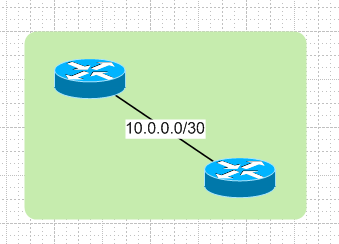
By default, Visio colors the background of text blocks white. This can be frustrating when labeling line segments which cross a colored background. The unwanted white box stands out in a bad way:
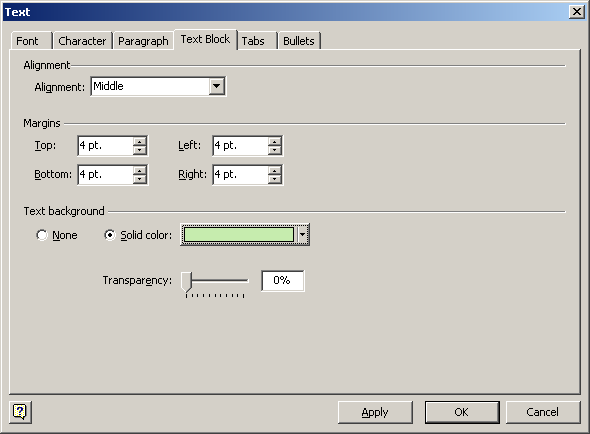
To fix this, right-click on the line or text box and navigate to Format > Text in the context menu. Select the Text Block tab. Here you can change the background color to match that of the background shape, or disable the text block background entirely.
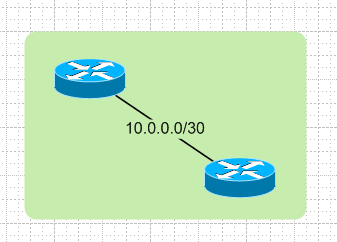
However, by setting the background color to None you also remove the line break effected by the text. In this example we've modified the text block background color to match the background shape. Much nicer.
Posted in Network Diagrams, Visio
Comments
February 4, 2009 at 5:42 p.m. UTC
Jeremy, i usually make it a little bit of transparent so the underlying line can be seen.
February 5, 2009 at 1:25 a.m. UTC
Another nice feature is making the text follow the same angle of the line. When you grab the text and can rotate it, the farther away you move the mouse cursor while holding down the left mouse button the finer the degree of rotation.
Visio was the first thing I started doing when I was still in the Cisco Networking Academy and began an internship at a nearby networking company years ago.
February 5, 2009 at 9:50 p.m. UTC
How do you get the text to sit horizontally ??
March 13, 2009 at 1:50 p.m. UTC
Hi Felix,
Just right click on text
Go to ' shape ' and select rotate.
That's it.
csc
May 25, 2009 at 2:02 p.m. UTC
Jeremy: What source of network symbols are you using in your Visio drawings? Those are simple Cisco Networking Topology Icons (PowerPoint format), copy-pasted to Visio with some Connectors added to them? Or you have some king of shape-library (which you are willing to share:)?
Visio tips are great! More articles of network drawing best-practices and methodologies... :-)
May 31, 2011 at 1:05 p.m. UTC
Your suggestion at least got the text inside a Visio Pro 2007 Windows and Dialogs Text box (single-line) control to have background. Yet the rest of the Text box insists on being white.
The Grid Column control was quite simple to get to accept a color background... just I found that the Solid fill pattern (#01) was "broken" so I switched it to pattern 02 and it colored the Grid Column.
Seems Visio Pro 2007 is buggy... not an intuitive UI.
June 4, 2012 at 12:12 p.m. UTC
Hi Jeremy,
The post was quite useful.
Thanks,
Vijender
August 22, 2012 at 7:21 p.m. UTC
Is there a setting to make "no background" the default vs. having to turn it off every time you add new text? I'm actually finding it easier to copy and paste existing text blocks and just replacing the text to avoid having to do this over and over and, while less cumbersome, it's more cumbersome than just adding new text as needed. I've searched for this setting and have had no luck.
Help?
March 16, 2013 at 11:39 p.m. UTC
Hi all, I'm a newbie of Visio.. When I use dinamic connector between router i usually put in the text box the net link as you do in this example! But how could I add the endpoints ip on the line? Like:
ROUTER-.111--------------192.168.69.0/24-----------------.112-ROUTER
May 16, 2016 at 12:58 a.m. UTC
In Visio 2013, right-click, choose Edit Text, Font, Text Block tab, Text Background: none